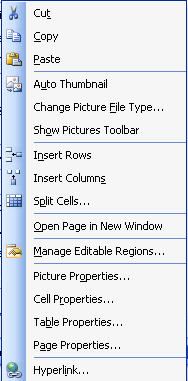
Notice several choices that pertain to images:
- AUTO THUMBNAIL- allows you to produce a thumbnail of the image, very useful if you have large images or need to put several images on a single page.
- CHANGE PICTURE FILE TYPE- this will allow you to alter the file type of the image if needed for certain functions.
- SHOW PICTURES TOOLBAR- this command will open the picture toolbar that allows you to modify the picture.
- PICTURE PROPERTIES- this command opens another window that allows you to change image size, position relative to text, etc..
- HYPERLINK-this button opens the hyperlink window and allows you to make the image a hyperlink to open another web site.
This thumbnail is actually a hyperlink that will allow you to open a larger version of the image in another window (try it).
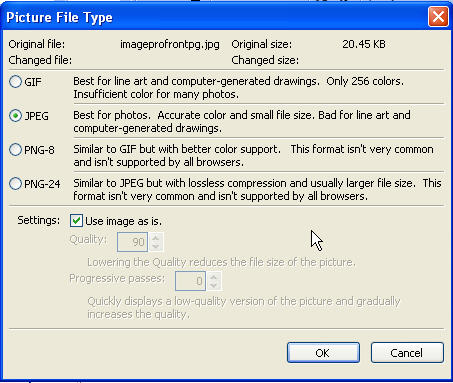

- Turn the image to various directions

- Change the brightness and contrast of the image

- Crop the image

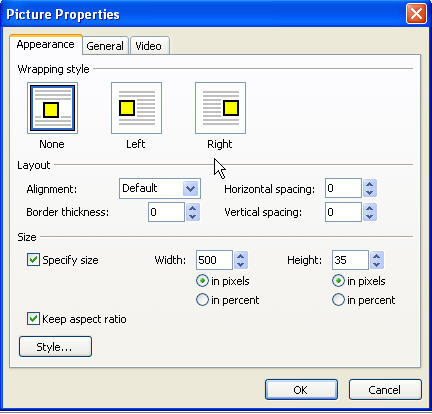
- Wrapping- how to position the image in reference to any text near the image.
- Layout- using the dropdown box