Installation Procedures
HP DesignJet 455CA Plotter
Room 208 Wilson-Wallis Hall
The following procedures will help you install the HP DesignJet 455CA Plotter (located in Wilson-Wallis Hall Room 208) as a printer on your PC. It is strongly suggested that, if your computer's screen resolution is sufficient, you move and resize both this browser window and the Add Printer Wizard Dialog Box so that both are visible.

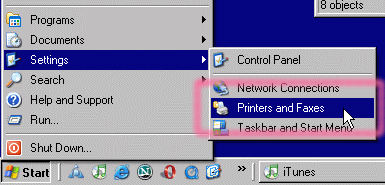
- Open the "Printers and Faxes" dialog box by clicking "Start" "Settings" and
"Printers and Faxes" as shown to the right.
- Double left click mouse on "Add Printer" to start the Add Printer Wizard.
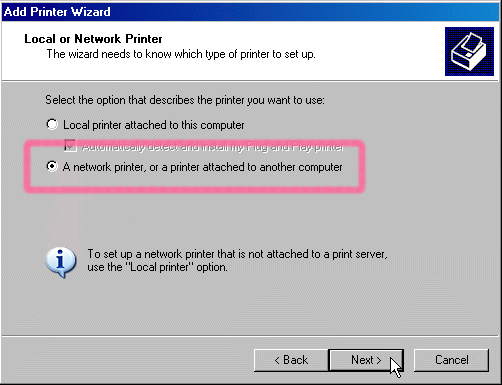
- In the first Add Printer Wizard dialog box, choose the option "A network printer, or a printer attached to another computer"
and press the "Next >" button.
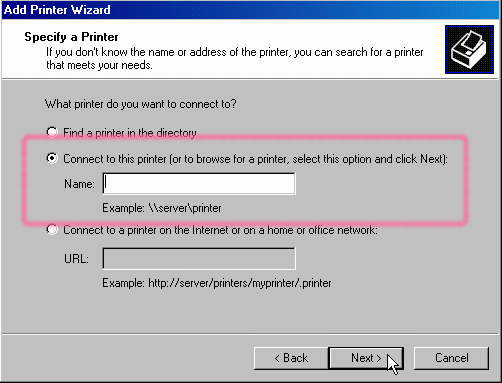
- In the second dialog box ("Specify a printer"), choose the "Connect to this printer..."
option and press the "Next >" button. (Leave the name blank to browse.)
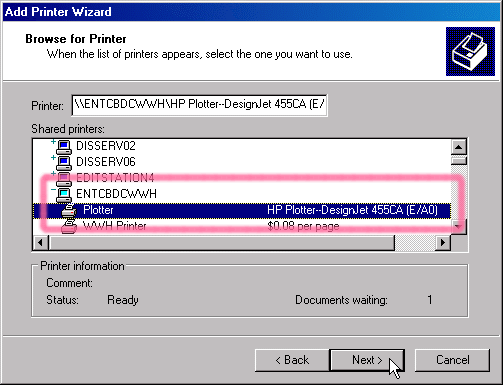
- The "Browse for Printer" dialog box will appear and, after a few minutes, a list of shared
printer devices connected to the ETSU domain will appear. Scroll down to the computer
named "ENTCBDCWWH" and double click to expand. Click on the "Plotter" to highlight it
and press "Next >."
- When the "Default Printer" dialog box appears, choose "No" and "Next >."
- Click on "Finish" to complete Window's HP plotter device driver installation process.
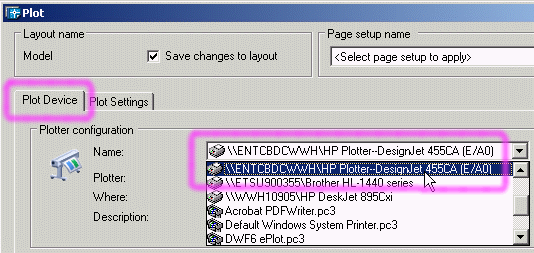
- To plot from within AutoCAD, you will first have to have to first select the "Plot Device" tab and
choose the HP plotter as shown. Switch to the "Plot Settings" tab and finish configuring the plot.